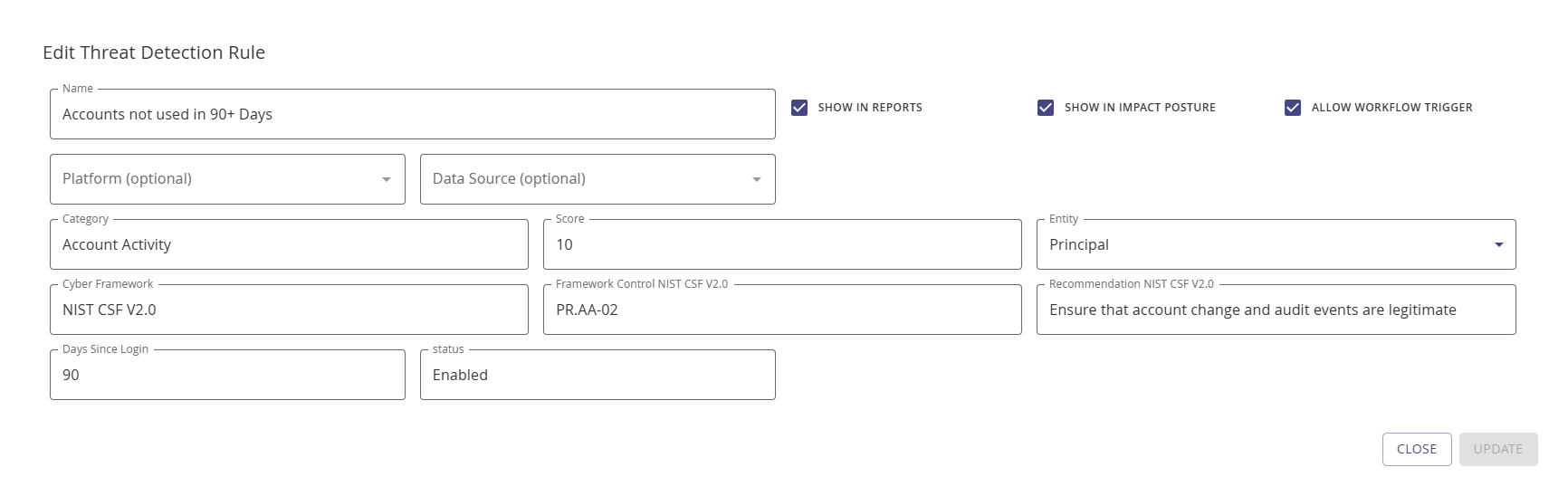
Configure a Threat Rule
Follow these steps to configure a Threat Rule:
Navigate to Configuration | Identify | Threat Rules.
Click + Add Rule.
For Name, enter a descriptive name for your new rule.
If you want the threat rule to show in reports, select the Show in Reports checkmark.
If you want the threat rule to count towards the overall Identity Posture Threat Score, select the Show in Impact Posture checkmark.
From the optional Aggregation Type drop-down, select maximum or weighted.
For Score, enter an impact number.
For Cyber Framework, specify the specific framework applying to this rule, for example, NIST CSF v2.0.
For Framework Control, enter the control name, for example, for NIST CSF v2.O, it could be PR.AA-03.
NOTE
Multiple framework references can be added for a given risk factor.
Click Add.
You may also edit an existing custom Threat Rule via the edit button. Default Threat Rules can't be edited.
Use the Rule Matches button to retrieve all accounts that match the specific rule. Rule matching is not available for aggregation rules.
Threat Rule Actions
Refer to the Integrate section to learn about actions based on threat rules.
NOTE
To activate the workflow and threat rule association, enable the Allow Workflow Trigger checkbox on the add/edit Threat Detection Rule modal.