
Creating a CyberArk Credential
Follow the steps below to configure a CyberArk credential.
Prerequisites in CyberArk
Create a Role
- In the CyberArk Identity Security Platform create a role under the Identity Administration module.
- Navigate to Administrative right and add System Administrator.
- Navigate to roles, open Privilege Cloud and add Admin role.
- Add the role that you created in the previous step.
Create a Service Account
- Navigate to CyberArk Privilege Cloud.
- Create a Service Account for use with the Hydden Platform integration.
- Add that Service Account to every safe that the user should have access to for the Hydden Platform integration. You will need to user the Login name and Suffix combination in the Hydden configuration steps below.
Also refer to the information under
- API token authentication for CyberArk Identity Security Platform Shared Services for details on the token
- Add Applications
NOTE
Depending on deployment, cloud or self-hosted, different CyberArk information is required during the data source configuration.
- Cloud: Use the "CyberArk Tenant Name" and "CyberArk Identity ID".
- Self-hosted: Use the "Platform URL" and "Identity URL".
Creating the Credential in Hydden
Navigate to Configuration | Settings.
Select Credentials and click + Add Credential.
From the Credential type drop-down, select CyberArk Credential
Enter a Name for the credential that fits your business need.
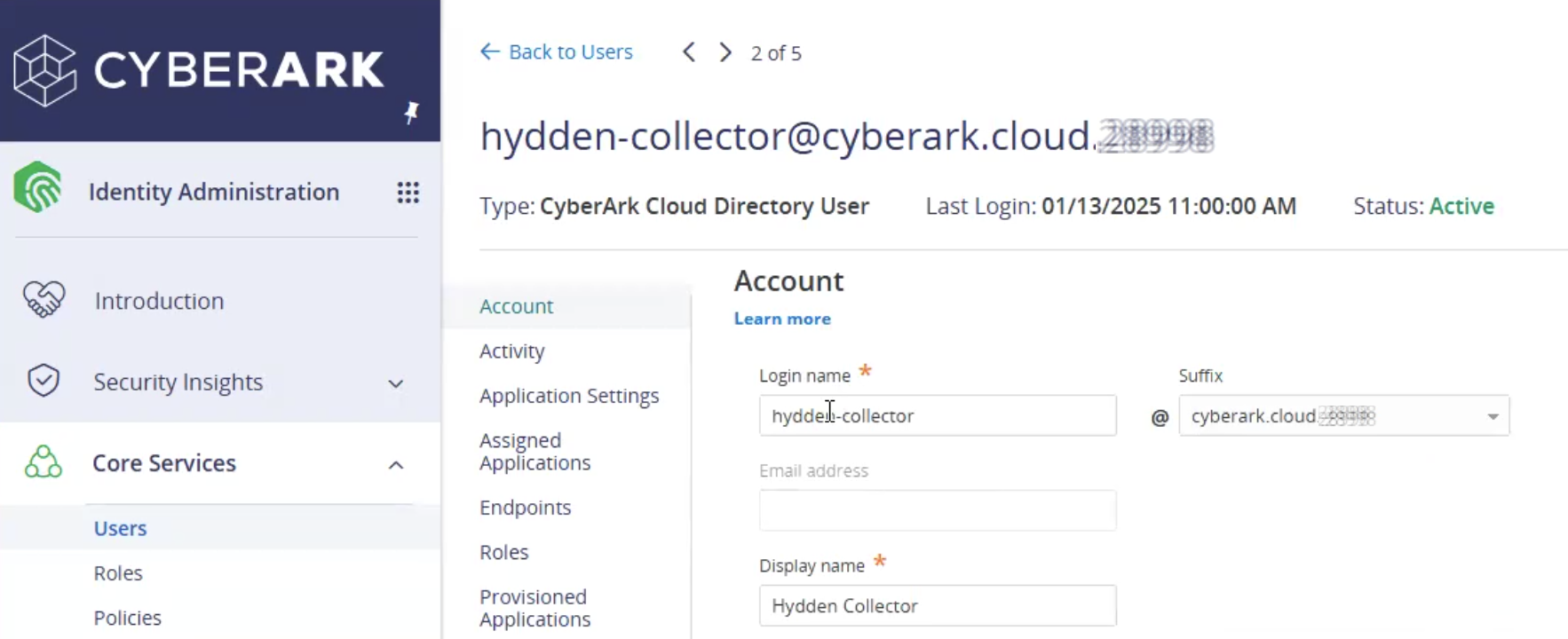
For the Username, we use a service account that has been defined in the CyberArk platform. In your CyberArk instance, navigate to Identity Administration | Core Services | Users, select Service Accounts from the right menu (this is an oAuth Confidential client account). Find the service account created for the Hydden collector and use the Account Login name and Suffix combination.
Provide the Password associated with the CyberArk Cloud Directory Service Account.
If this account is vaulted or you want it to be vaulted, select the Vaulted Credentials checkbox.
For the CyberArk Tenant Name, provide your organization's tenant name as setup in your CyberArk instance.
For the CyberArk Identity ID, us the Identity ID found in your CyberArk instance under your user profile when you select Tenant details | Identity, copy the ID and paste it into the CyberArk Identity ID field.
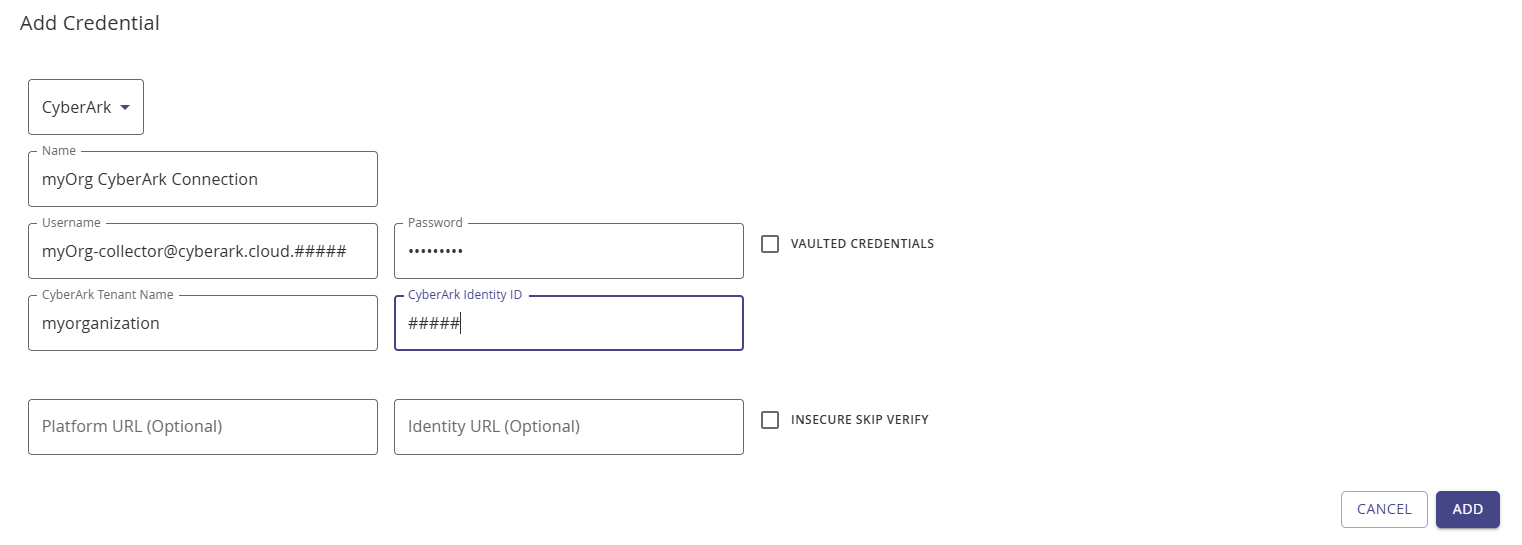
Click Add.
Optional: Only for CyberArk on-prem installations use the optional fields and provide your Platform URL and Identity URL as configured. For test environments without valid SSL certs, we recommend checking the Insecure Skip Verify checkbox. Remove the CyberArk Tenant Name and CyberArk Identity ID, if your organization uses on-prem CyberArk servers.
Click Add.
This credential enables the Hydden CyberArk data source, once configured, to see and collect the CyberArk Core Services data, like Users, Roles, Policies, etc. as available in an organization's CyberArk cloud instance. It also enables the collector to access and collect the Accounts list and the CyberArk Safes of that organization.
That collected data can then be used in a Vaulted Credential for other verification or access purposes in Hydden.
Optional Fields on the Modal
- Platform URL: This is the generic CyberArk URL for you organization, usually something like https://yourorganization.privilegecloud.cyberark.cloud.
- Identity URL: The Identity URL can be created by using and adding the CyberArk Identity ID into the following URL format:
https://{TenantIdentityID}.id.cyberark.cloud(for example, https://idu8089.id.cyberark.cloud).