
Data Source Presets
Use Data Source Presets to configure a data source. Data Source Presets tell the client from where to collect data and which credentials to use while following a schedule and from which regions.

Creating a Data Source Preset
Navigate to Configuration | Settings.
Select Data Source Presets.
Click + Add Preset.
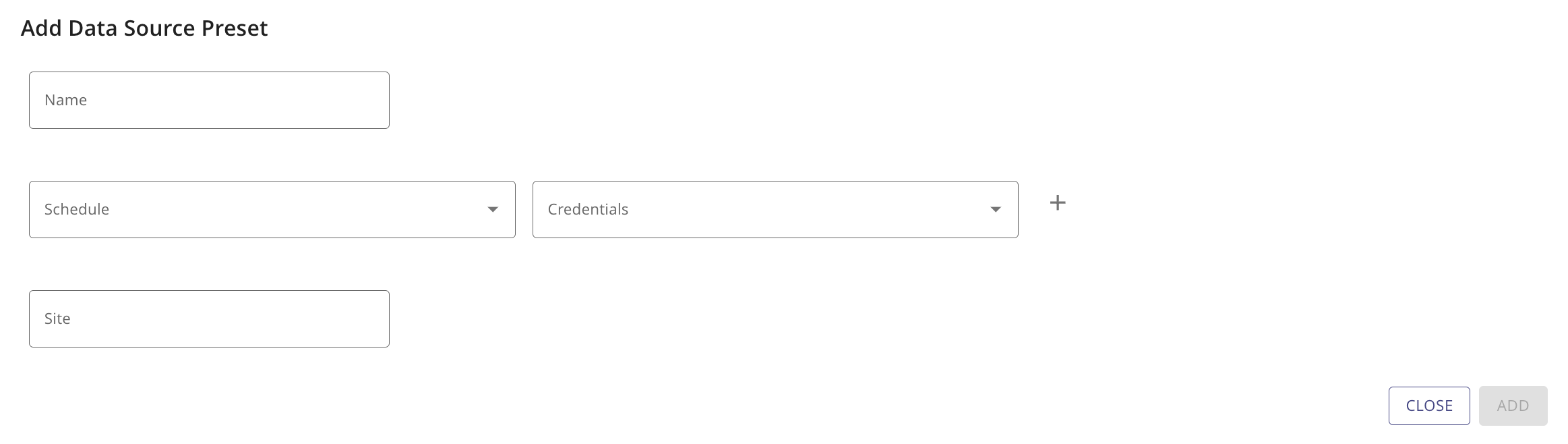
Enter a Name.
From the Schedule drop-down, select the schedule frequency for the job.
From the Credentials drop-down, select the credential for running the job.
Specify a Site. Usually, a site that is already specified in a Client Template.
Click Add.
Importing a Bulk List of Data Sources
Organizations that need to collect data from many servers across their network can use the Data Source Preset to bulk upload/import data sources. The preset automatically creates a data source configuration for each server once you add the preset to one actual data source.
After you create a Data Source Preset for a Linux or Windows Server, click the Import action.
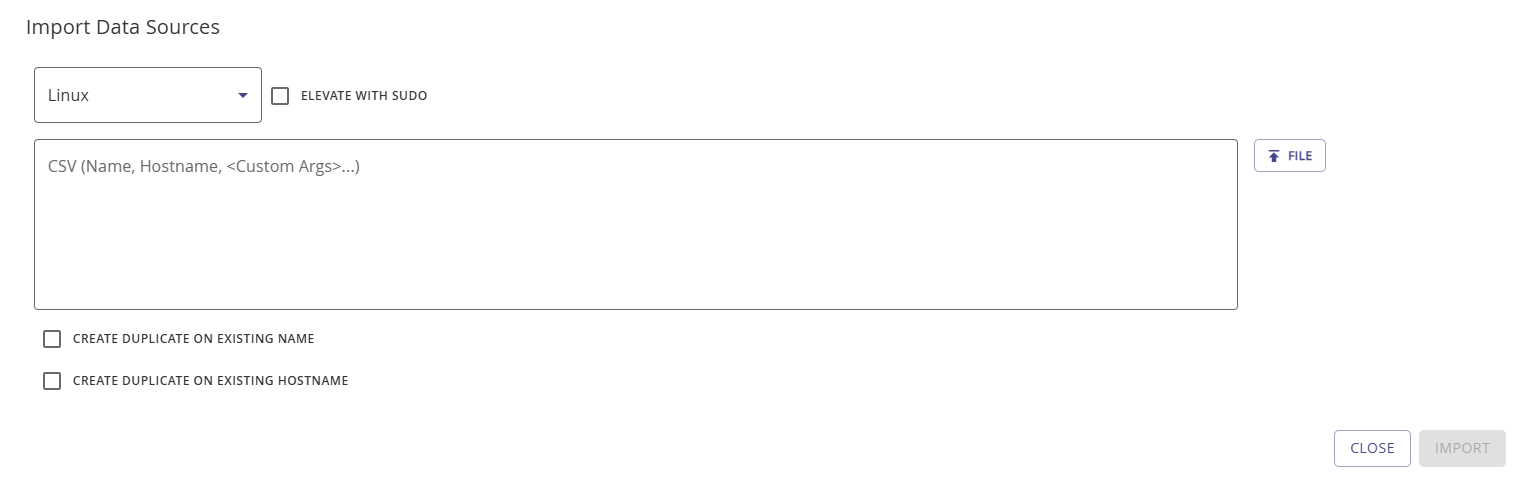
On the Import Data Sources modal, specify the servers' operating system. For Linux, you might need to Elevate with Sudo.
Manually enter (copy and paste) or upload a CSV file with all system details. Use the required format
Name,Hostname,<Custom Arg>....Use the checkboxes to specify how to handle duplicate name and hostname entries. Selecting the checkbox creates a duplicate data source; otherwise, the system ignores the "duplicate" entry.
Click Import to finish the upload.
Once you create the preset, navigate to Discover | Data Sources and create a Windows or Linux data source. Add the Data Source Preset via the drop-down on the add or edit data source modal. Refer to Data Source Overview and the specific server topics.